 To set Scheduler parameters for Palm SFA
users:
To set Scheduler parameters for Palm SFA
users:Before you can use the Palm SFA application, you must modify the host system to work with Palm SFA. Set the following Scheduler parameters for Palm SFA users. These settings work in conjunction with the Palm SFA Pocket Scheduler application.
To set Scheduler parameters for Palm SFA
users:
From the System > System Files / User Control menu, select User Maintenance to display the User Maintenance screen.
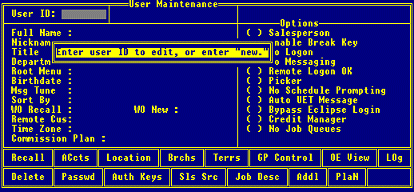
In the User ID field, enter a user ID to display the corresponding user record.
Use the Addl hot key to display the Additional Data screen.
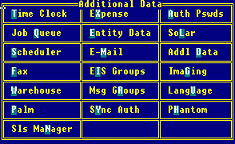
Use the Scheduler hot key to display the Scheduler Parameters screen.
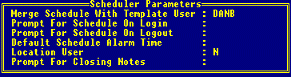
Complete the following fields:
|
Field |
Description |
|
Merge Schedule With Template User |
If the user works the standard office hours set up for your company and a template user ID has been set up with those hours scheduled, you can instruct the system to copy the schedule set up for that ID into this user's schedule. Enter the template user ID in the Merge Schedule With Template User field. Note: The system copies all events with the Available and Busy statuses defined for the template user to this user's record. |
|
Prompt For Schedule On Login |
Indicates whether the system prompts the user to add an entry in the Daily Planner or their Daily Schedule when they log in. If blank, the default is Empty. Press F10 and select Empty, Always, or Never. The option set in the Check Scheduler On Login control maintenance record determines the type of prompt that displays. If the No Schedule Prompting field is flagged on the User Maintenance screen, the system ignores the setting in this field. |
|
Prompt For Schedule On Logout |
Indicates whether the system prompts this user to enter today's schedule in the Daily Planner when they log out. The setting in this field only applies if the Check Schedule On Login control maintenance record is set to Daily Planner. If the No Schedule Prompting field is flagged on the User Maintenance screen, the system ignores the setting in this field. |
|
Default Schedule Alarm Time |
The default time in minutes that the Scheduler alerts the user about schedule events. |
|
Location User |
Indicate whether the system treats this user ID as a schedule location, such a conference room.
|
|
Prompt For Closing Notes |
Indicate whether you want the system to display the Closing Notes screen whenever this user marks a scheduled event as completed.
Note: A value entered in this field overrides the setting in the Prompt For Scheduler Closing Notes control maintenance record. If left blank, the control record determines whether the closing notes screen displays. |
See Also:
Configuring User File Maintenance for Palm SFA
Defining Job Queue Parameters for Palm SFA Users