Eclipse has transaction log-capturing capabilities for FTP, SFTP, and FTPS. You can access these logs through Solar and customize your preferences by enabling or disabling specific call logs. You can also adjust the log file's transaction count or capture duration, and the system automatically archives the log after a set threshold.
Set the activity log preferences using the existing API Configurations window.
Navigate to:
System > System Programming > Add On Products > API Maintenance > API Configurations
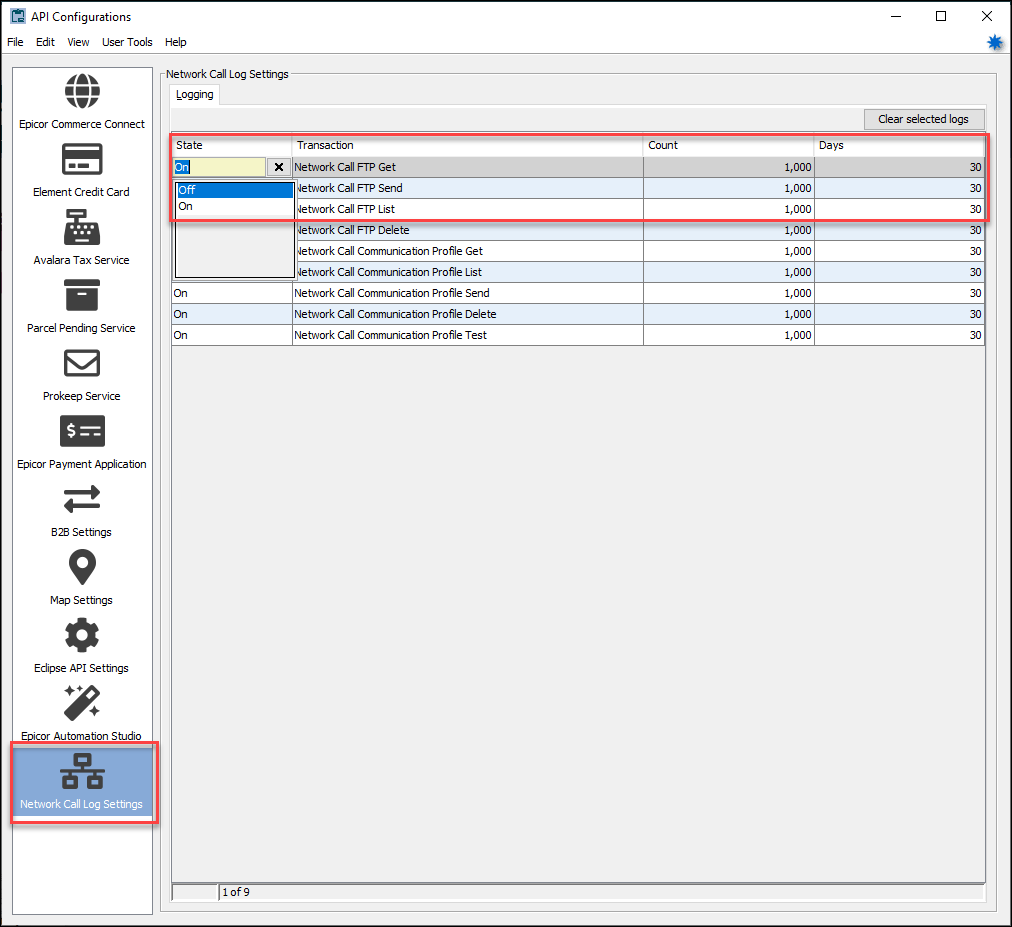
Select the Network Call Log Settings panel to view the Logging transaction types table.
The table shows the various network call transactions available for logging. The Transaction column is a read-only field to identify the type of network transaction to log.
Use the table columns as follows.
In the State field, choose On or Off for a specified network call transaction. Select "On" to have the system log the network transaction or "Off" to not log transactions.
In the Count field enter the maximum number of transactions the system can log in a specified period. Once the transactions reach the logging limit, the system automatically archives the data. After the automatic archival, the next log period starts.
In the Days field, enter the period the system maintains a single activity log for the type of network transaction. The system starts a countdown of days to when the process automatically archives the data.
Select the Clear selected logs button to remove the logs for the transaction type.
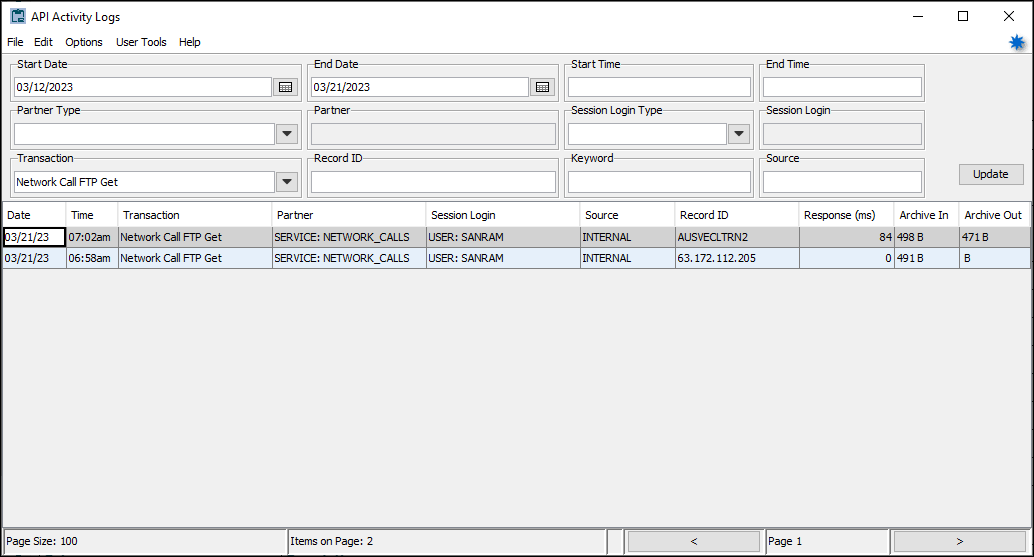
Using the existing API Activity Log window you can view the various network transactions in the logs. On the API Activity Log window use the Transaction drop-down list to select the network transactions to view. You can use any of the other filters in the header as needed. The log data is also available for archived dates.
Double-click a row to view the log, as is typical to do in this window.