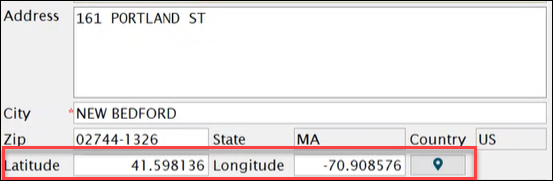
The Eclipse system displays latitude and longitude for addresses in select Eclipse windows and uses an interactive map to let you see the location and change it. Set up this feature in the Map Settings section of the API Configurations window.
Eclipse uses a built-in utility that converts addresses in Eclipse into geographic coordinates (latitude and longitude) in a process called geocoding. The geocoding feature is present in the Customer Maintenance, Sales Order Entry (ship to), Vendor Maintenance, and Contact Maintenance windows. You can also use the Eclipse utility for reverse geocoding to convert the latitude and longitude coordinates into an address. The Eclipse geocoding utility allows you to accurately determine a customer location for shipping and other reasons.
The Eclipse geocoding utility system works with two map services: Bing Maps and Open Street Maps. Set your Eclipse system to use one of the services. If you choose to use Bing Maps, you need to purchase a license from Microsoft to use the service. After you purchase the license from Microsoft, you can obtain an API Key according to their requirements as outlined at https://www.microsoft.com/en-us/maps/create-a-bing-maps-key. If you choose Open Street Maps, you do not enter an API key.Ad
The Eclipse geocoding system is designed to use an interactive map. Using the map, you can see the address location that is entered in Eclipse. You also have the option to change the location using the map.
After you choose your map service in the Map Settings window, the remaining options dictate how Eclipse responds when using the fields and map in the Eclipse windows. For example, you can have Eclipse automatically enter the coordinates in the Latitude and Longitude fields, based on the address that is in the window. When using the map, you can set the system to update the Latitude and Longitude fields based on selecting a new map location. With those new coordinates entered, you can have Eclipse automatically update the address.
To use the latitude and longitude for addresses in Eclipse, set up the Map Settings in the API Configuration window. The default is that no map service is selected and the feature is not active.
Navigate to System > System Programming > Add On Products > API Maintenance > API Configurations and then select the Map Settings option.
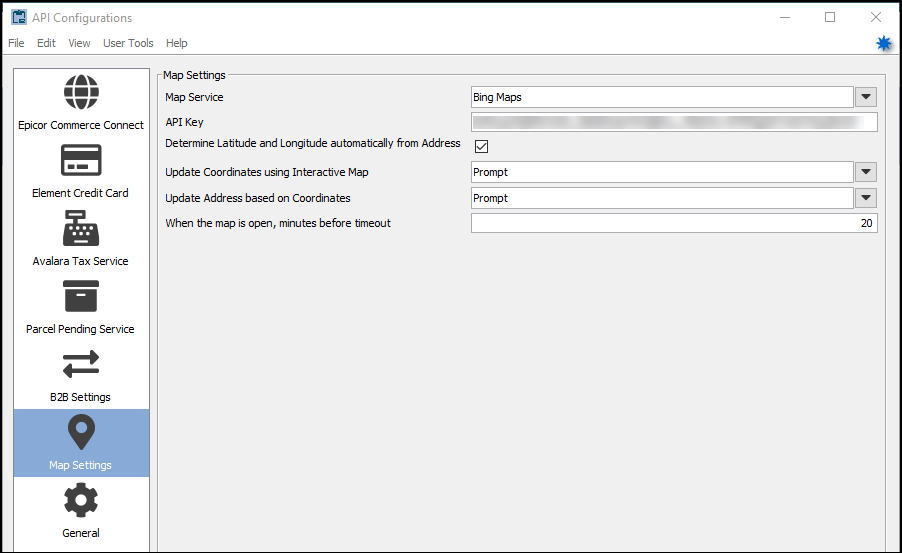
Complete the Map Settings options to activate the latitude and longitude features as follows.
From the Map Service list box, select either Bing Maps or Open Street Maps.
Notes: To use Bing Maps, you need to purchase a license from Microsoft. The API Key field is available only for the Bing Maps selection.
In the API Key field, enter the key for the Bing Maps service. You cannot make an entry in this field if you select Open Street Maps.
If you want the system to update the latitude and longitude based on the address, select the check box for Determine Latitude and Longitude automatically from Address.
From the list box, Update Coordinates using Interactive Map choose:
Yes - When you click a spot on the map and select the Send Coordinates to Solar button, the Latitude and Longitude fields update in the system.
No - You do not have the Send Coordinates to Solar button.
Prompt - You click a spot on the map, select the Send Coordinates to Solar button, then the system opens a confirmation message box to give you a choice to update the coordinates or not.
From the Update Address based on Coordinates list choose:
Yes - When you change the coordinates using the Send Coordinates to Solar button, the address updates in the system.
No - You do not have the Send Coordinates to Solar button.
Prompt - When you change the coordinates using the Send Coordinates to Solar button, then the system opens a confirmation message box to give you a choice to update the address or not.
Enter the time in the field When the map is open, minutes before timeout.
Note: The default time is 15.