You can send a text message when a designated activity is triggered on your Eclipse system. Your customer can be notified when various events occur, such as when the order is created. Any Activity Trigger on your Eclipse system, you can set to generate a text message.
As a companion product for Eclipse, you need to contact Epicor to update your system for this service to display on your Eclipse system. You must also be a subscriber to the Prokeep text messaging service. Current subscribers to Prokeep services can use their credentials to activate the text message trigger on Eclipse. Obtain the username and password to use with this setup from Prokeep.
To use the text message activity trigger on Eclipse, set up your system through the API Configurations window.
Navigate to System > System Programming > Add On Products > API Maintenance > API Configurations.
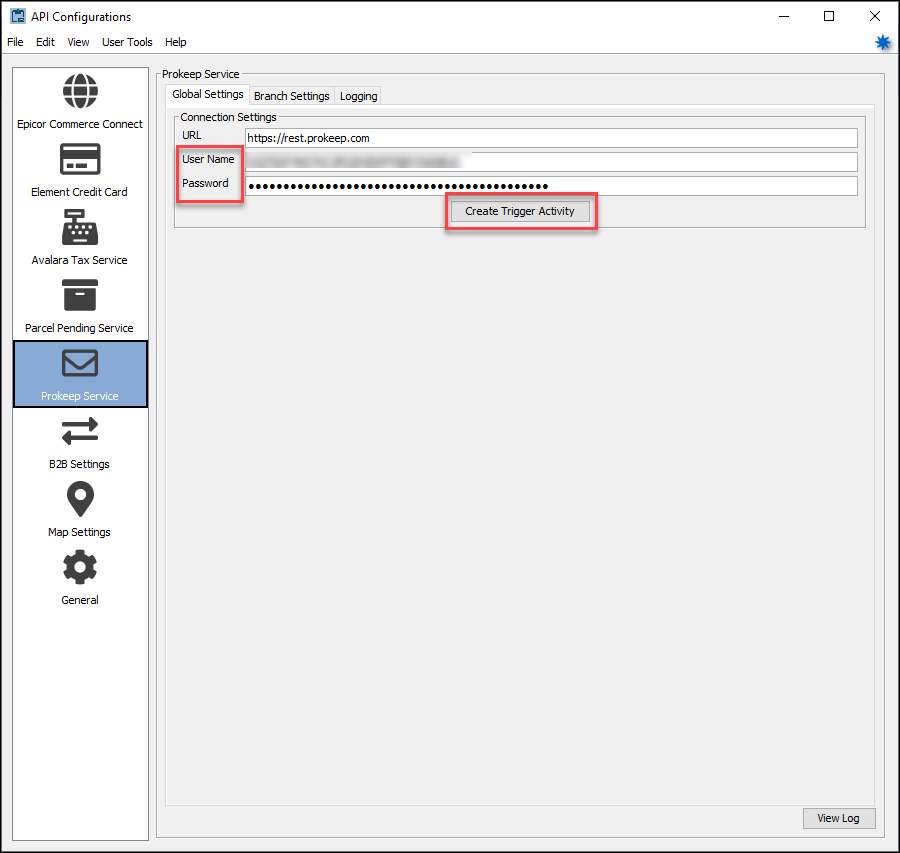
Select the Prokeep Service option.
On the Global Settings tab, enter the URL (https://rest.prokeep.com) and your Prokeep credentials. You received this information when you signed up with Prokeep to use their service.
Select the Create Trigger Activity button to add a trigger on your Eclipse system that results in sending a text message. See the help topic on setting up an Activity Trigger for further information.
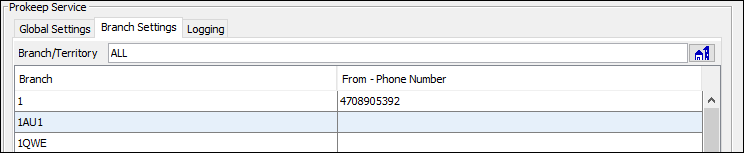
On the Branch Settings tab, for each branch indicate the telephone number that your customer sees the text is coming from. You would typically use a number that is recognizable as being from your branch, so your customer would understand the text is from your company.
On the Logging tab, turn activity logging on or off. You can also set the number of logs available for the set number of days.

With the trigger enabled in your Eclipse system, you determine which trigger activities you want to generate a text message to your customer. Set up the trigger as normal for a customer or a vendor on the maintenance window and the Activity Trigger Maintenance option. Now you have the Prokeep SMS option on the Activity Description list.
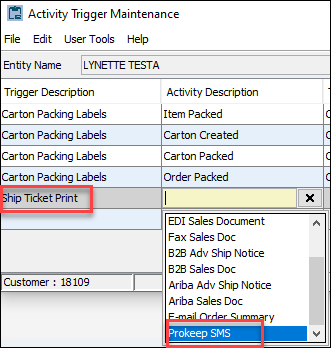
When you select Prokeep SMS, you define the text message that the customer/vendor receives.
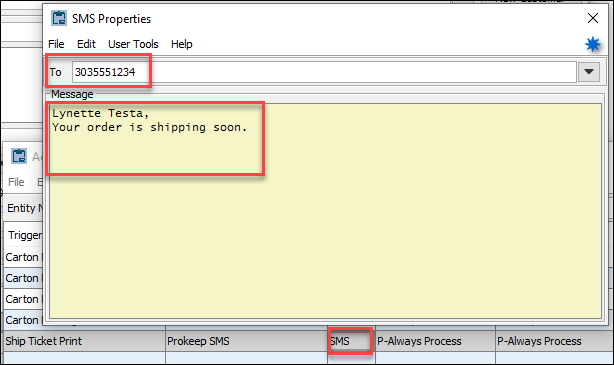
Double-click the SMS field in the Type column.
Enter the telephone number to which the system sends the text and the message that is sent. You also have the option for the system to use the general telephone number that is available for the customer/vendor. You do this by selecting the drop-down arrow in the To field. The system populates the field with Auto. The system automatically includes the order number in the text message.
If this is from Customer Maintenance, you have the Trigger Description for Shipment Notification on the Activity Trigger Maintenance window.
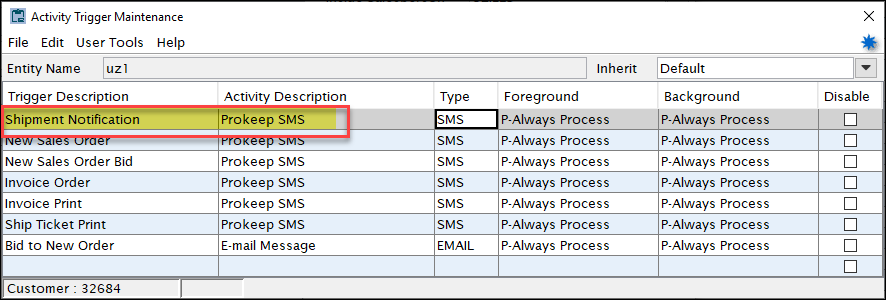
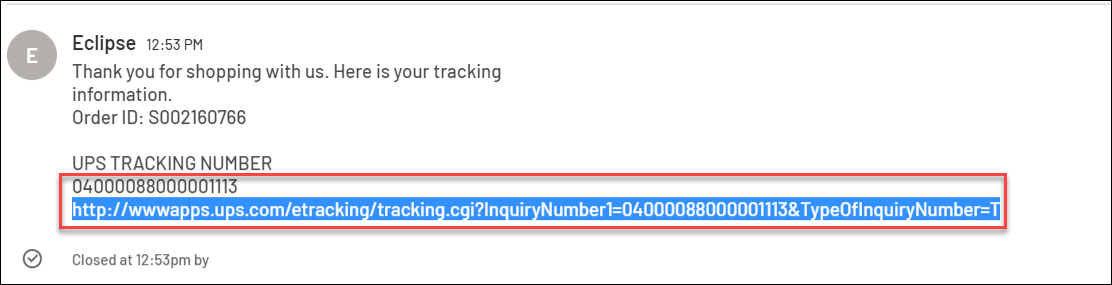
When using Prokeep SMS, the text message automatically includes the order number and for the Shipment Notification type it includes the tracking number.
See Also: